> ## Documentation Index
> Fetch the complete documentation index at: https://ai-kb.automationanywhere.com/llms.txt
> Use this file to discover all available pages before exploring further.
# EKB チャットボットを Google Workspace に統合する
> EKB を Google Chat に持ち込む
EKB チャットボットを Google Workspace と統合すると、Google Chat 内で直接 AI アシスタントにシームレスにアクセスできるようになります。この統合により、チームはワークスペースを離れることなく、質問への回答、ワークフローの自動化、日常業務のサポートなど、リアルタイムで EKB を操作できるようになります。
この記事では、Google Workspace で EKB チャットボットをインストールして設定する方法を説明します。これにより、チームがより効率的に共同作業し、日常業務を合理化できるようになります。
## 前提条件
* あなたのプロジェクトは**公開**です
* あなたは次のものを持っています:
* EKB チャットボットの外観を事前設定
* あなたのプロジェクトの `project id` が手元にあります
* Google Workspace で EKB アプリをセットアップするための **API キー + シークレット**のセット
## Google Workspace に EKB をインストールする
1. EKB プロジェクトで、**パブリック チャットボット** に移動します。
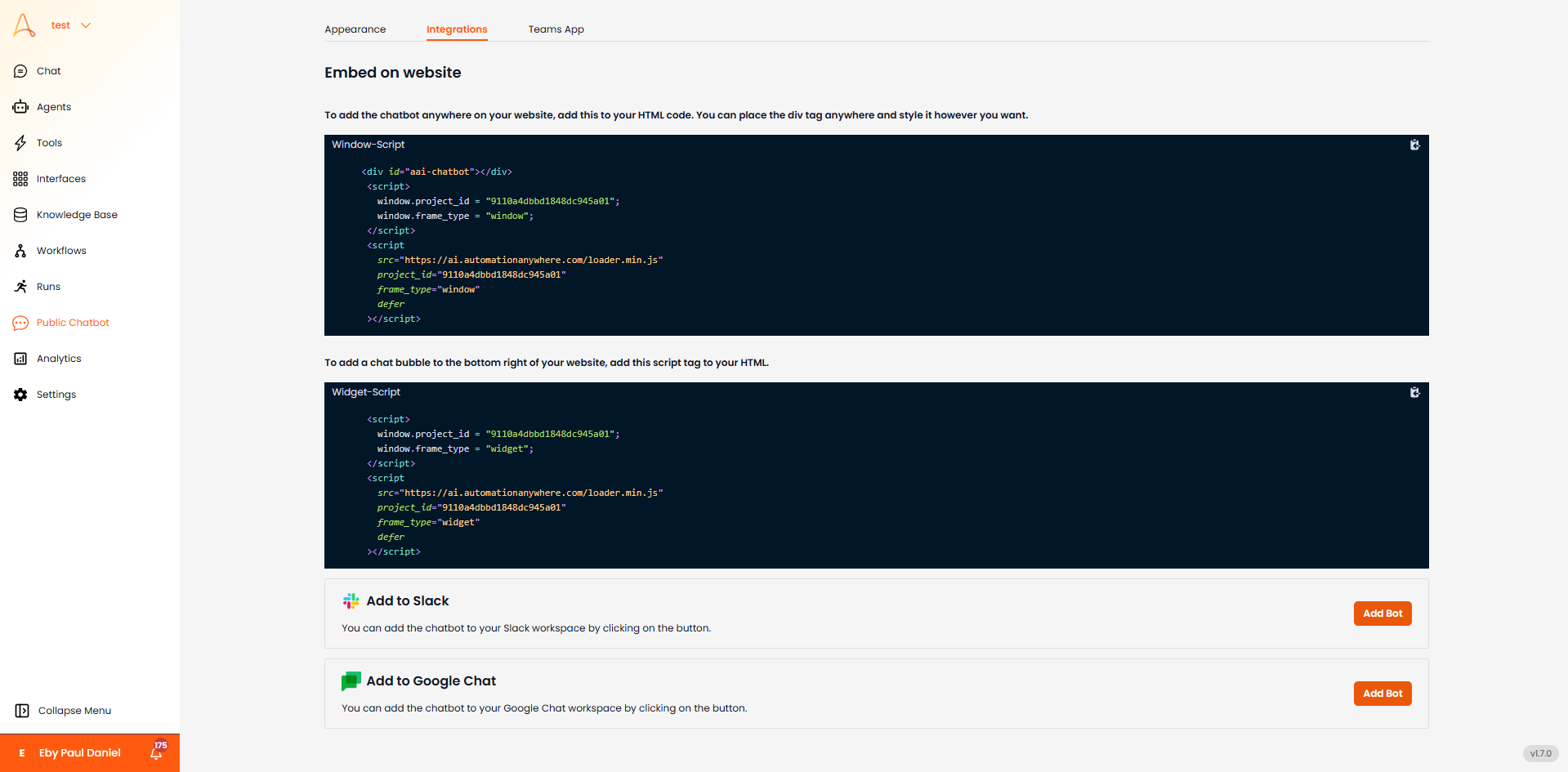 2. \[**統合**] タブに移動します。
3. \[**Google Chat に追加**] セクションまで下にスクロールし、\[**ボットを追加**] をクリックします。 Google Workspace Marketplace にリダイレクトされます。
2. \[**統合**] タブに移動します。
3. \[**Google Chat に追加**] セクションまで下にスクロールし、\[**ボットを追加**] をクリックします。 Google Workspace Marketplace にリダイレクトされます。
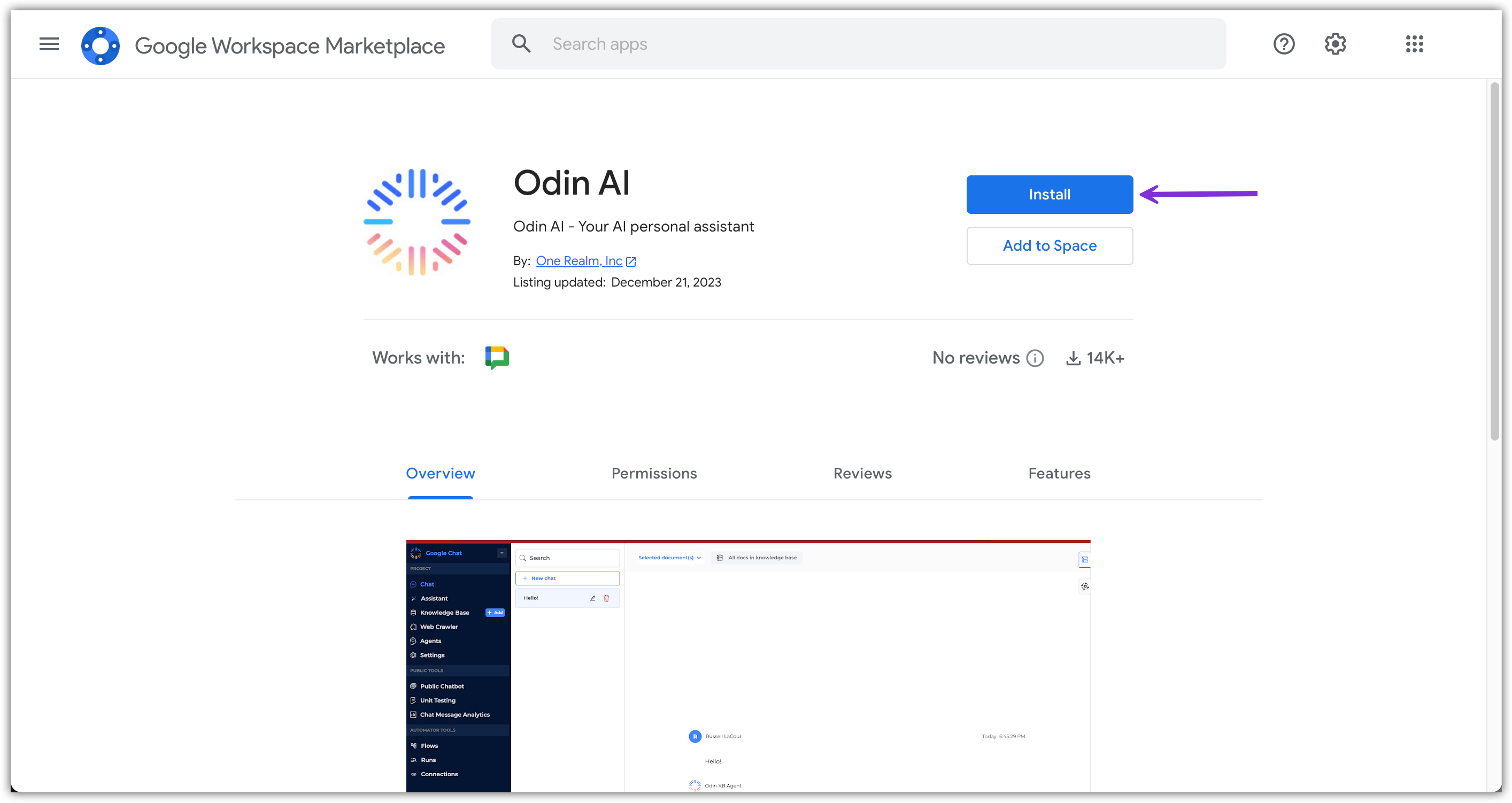
 4. Google Workspace Marketplace で、\[**インストール**] をクリックします。
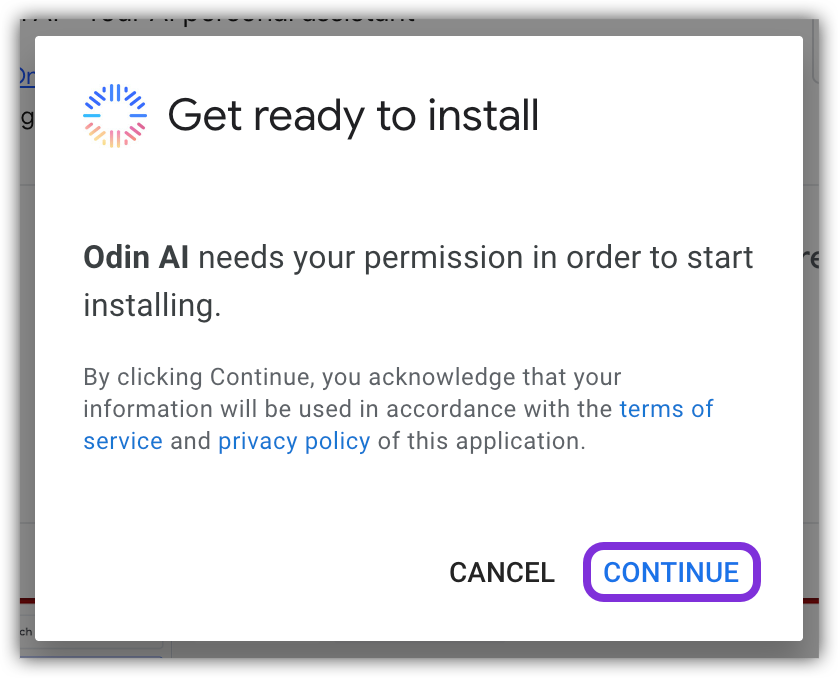
 5. 表示されるポップアップで、\[**続行**] をクリックしてインストールを開始します。
 6. 別のポップアップ ウィンドウが表示され、Google Workspace アカウントへのログインが求められます。
7. サインイン後、特定の情報にアクセスするための許可を One Realm Inc. に付与する必要があります。
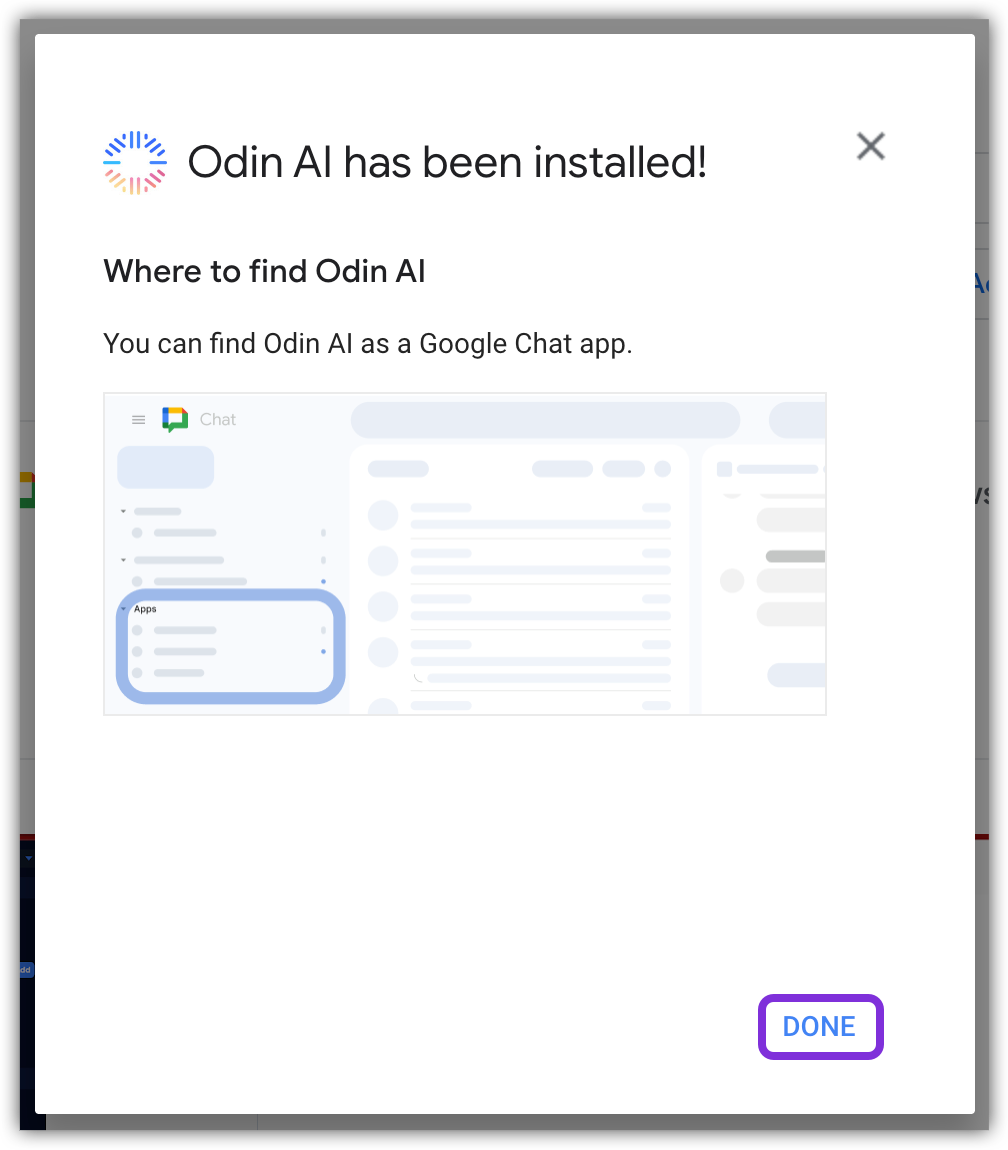
8. 必要な権限がすべて付与されると、EKB が Google Workspace にインストールされます。 \[**完了**] をクリックしてポップアップを閉じます。
6. 別のポップアップ ウィンドウが表示され、Google Workspace アカウントへのログインが求められます。
7. サインイン後、特定の情報にアクセスするための許可を One Realm Inc. に付与する必要があります。
8. 必要な権限がすべて付与されると、EKB が Google Workspace にインストールされます。 \[**完了**] をクリックしてポップアップを閉じます。
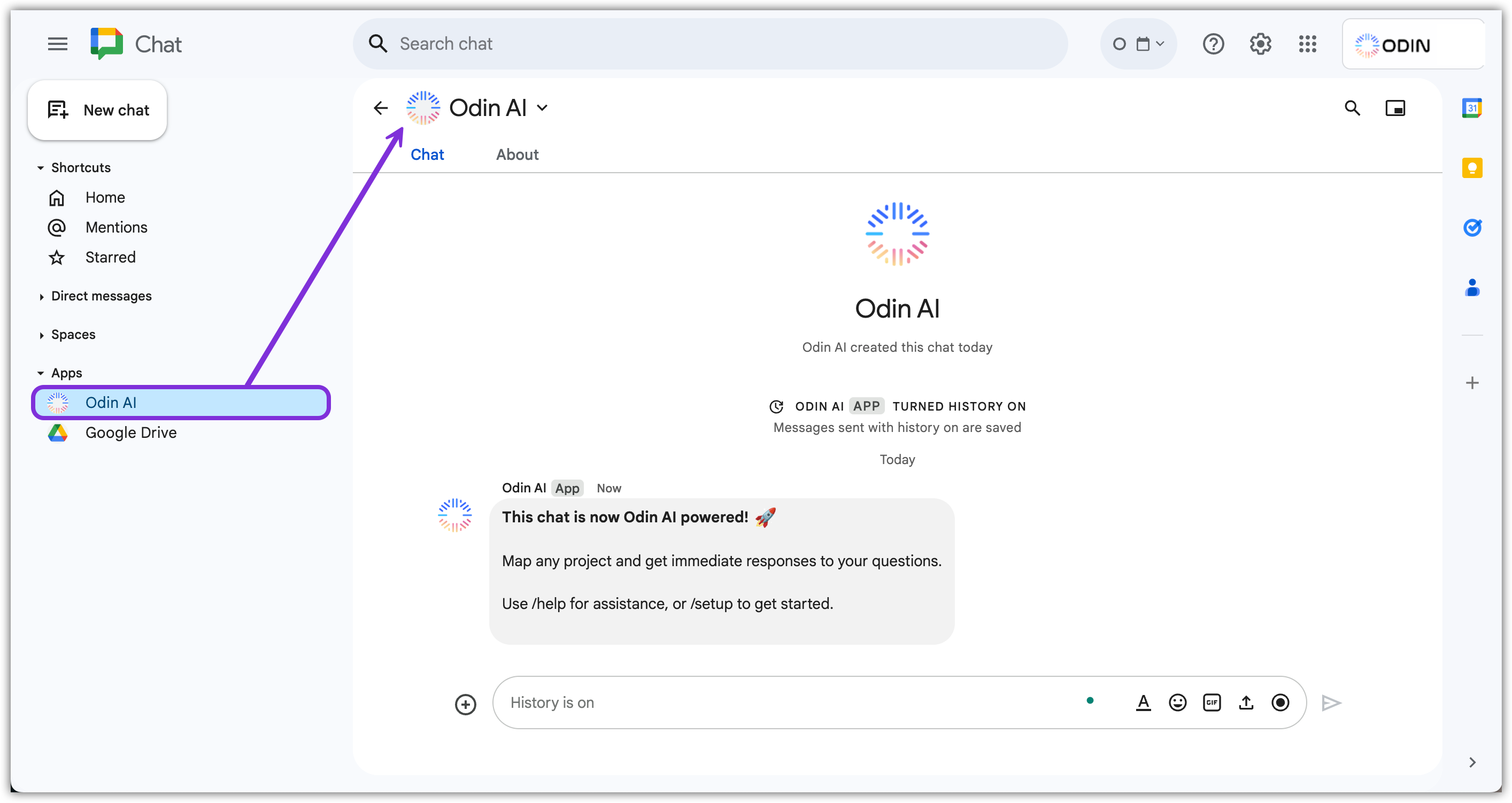
 9. **Google Chat** に移動し、**アプリ** セクションで *EKB* アプリを見つけます。
 Now that the EKB app is installed in your Google Workspace, you need to
set it up to begin using it!
## Google Chat で EKB を設定する
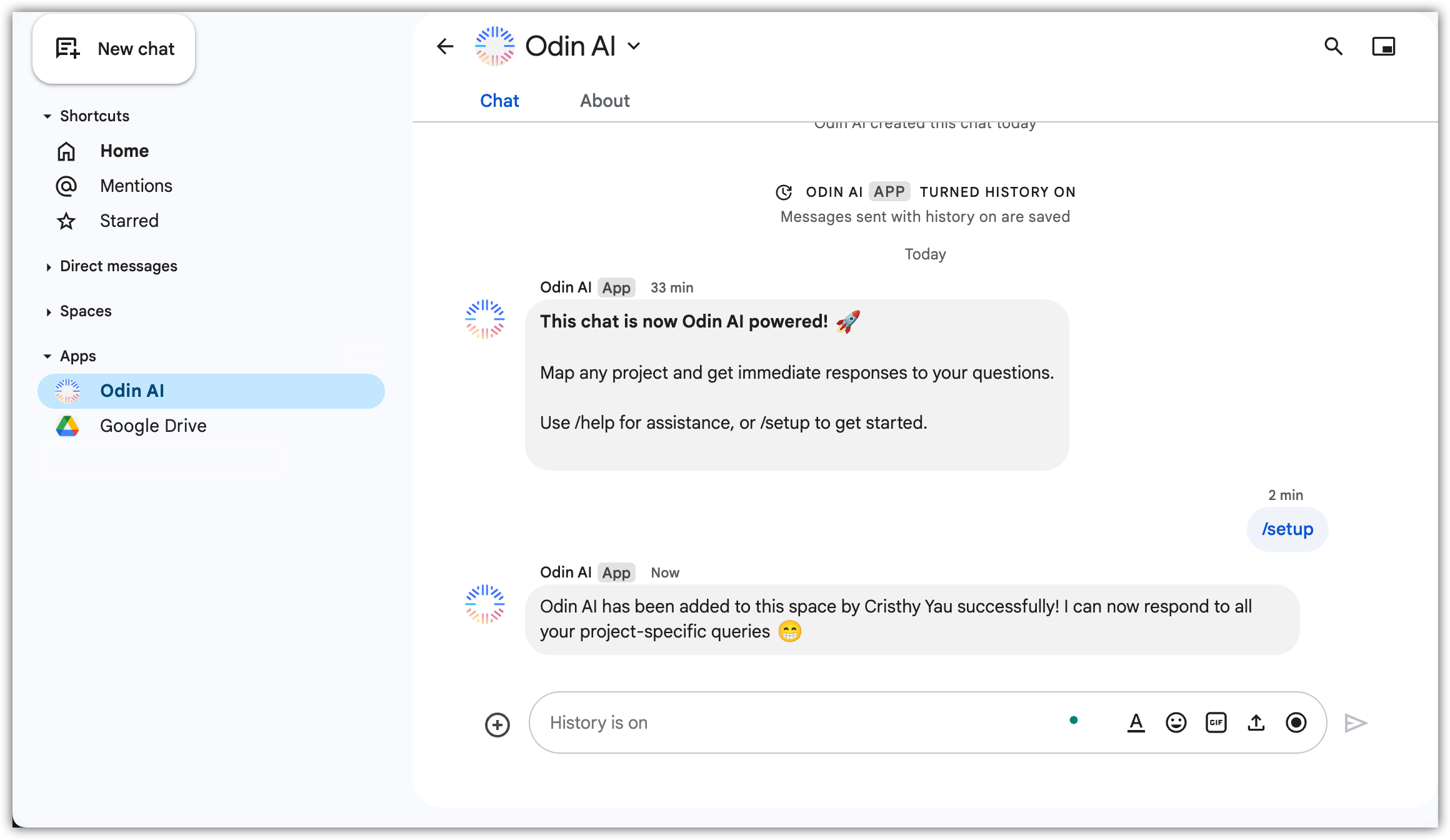
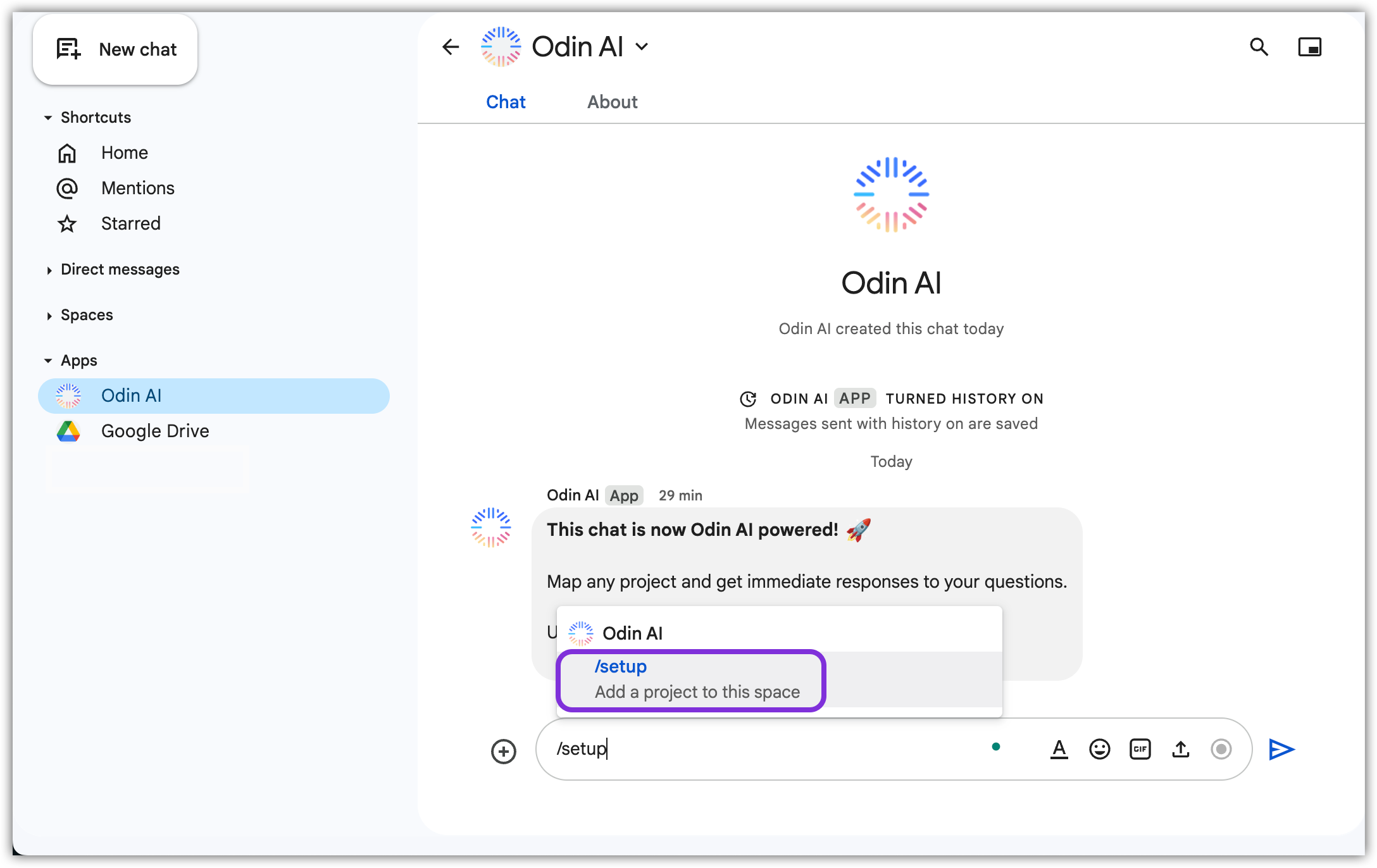
1. Google Chat の EKB チャット内で、「`/setup`」と入力し、テキスト ボックスの上に表示されるオプションをクリックして、\[**送信**] をクリックします。このコマンドは、EKB アプリのセットアップ ウィンドウにプロジェクトの詳細を入力するよう求めます。
Now that the EKB app is installed in your Google Workspace, you need to
set it up to begin using it!
## Google Chat で EKB を設定する
1. Google Chat の EKB チャット内で、「`/setup`」と入力し、テキスト ボックスの上に表示されるオプションをクリックして、\[**送信**] をクリックします。このコマンドは、EKB アプリのセットアップ ウィンドウにプロジェクトの詳細を入力するよう求めます。
 2. 表示されるポップアップで、次の情報を入力し、**送信**をクリックします。
 a.プロジェクトID
b. APIキー
c. APIシークレット
3. EKB アプリは Google Chat 内で使用する準備ができていません。
a.プロジェクトID
b. APIキー
c. APIシークレット
3. EKB アプリは Google Chat 内で使用する準備ができていません。