> ## Documentation Index
> Fetch the complete documentation index at: https://ai-kb.automationanywhere.com/llms.txt
> Use this file to discover all available pages before exploring further.
# 지식 기반에 Google Drive 연결
> 지식 기반과 Google Drive 파일 동기화
**Google Drive 커넥터**를 사용하면 문서, 스프레드시트, 프레젠테이션 및 기타 파일을 EKB의 지식 기반에 매끄럽게 가져올 수 있습니다. 연결하면 EKB가 Google Drive에서 콘텐츠를 자동으로 동기화하여 검색 가능하고 AI 에이전트가 접근할 수 있게 합니다. 이 통합은 최신 파일을 항상 사용 가능하도록 보장하여 팀이 기존 Google Drive 데이터에서 직접 인사이트를 검색하고, 질문에 답변하며, AI 기반 워크플로우를 구축할 수 있게 합니다.
## Google Drive 연결
다음 단계를 따라 지식 기반에 Google Drive 연결을 설정하세요:
1. EKB 프로젝트에서 **지식 기반**으로 이동합니다.
2. 오른쪽 상단의 **톱니바퀴** 아이콘을 클릭하여 지식 기반 설정에 접근합니다.
3. **커넥터** 탭으로 이동합니다.
4. *Google Drive* 옵션을 찾고 **연결**을 클릭합니다. Google 로그인 페이지로 리디렉션됩니다.
5. Google 계정으로 인증하고 EKB가 Google 계정에 접근할 수 있는 모든 필요한 권한을 제공합니다.
6. 연결하면 Google Drive 연결 아래에 Google 계정이 나열됩니다.
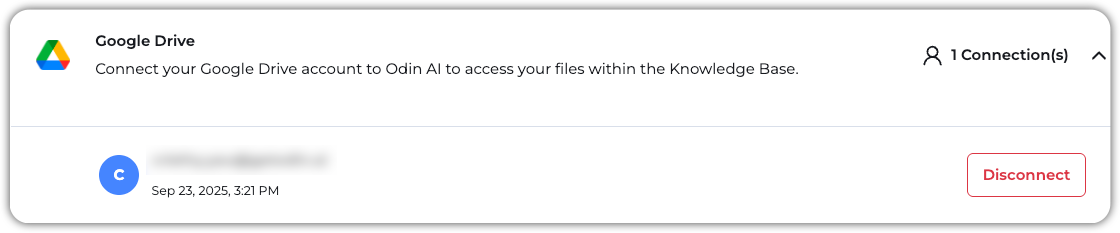 이제 지식 기반에 Google Drive에서 파일을 동기화할 준비가 되었습니다!
## Google Drive에서 데이터 추가
1. **지식 기반** > **KB 데이터**로 이동합니다.
2. **+ 새로 만들기**를 클릭하고 **URL 업로드**를 선택합니다.
3. 나타나는 팝업에서 지식 기반에 추가하려는 Google Drive 파일 또는 폴더의 URL을 붙여넣고 **URL 추가**를 클릭합니다.
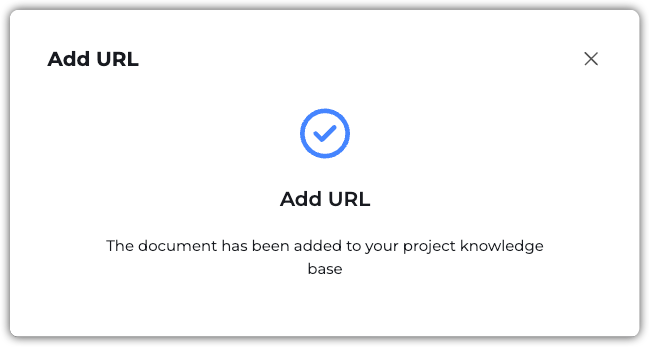
파일이 추가되면 다음 확인 메시지를 받게 됩니다:
이제 지식 기반에 Google Drive에서 파일을 동기화할 준비가 되었습니다!
## Google Drive에서 데이터 추가
1. **지식 기반** > **KB 데이터**로 이동합니다.
2. **+ 새로 만들기**를 클릭하고 **URL 업로드**를 선택합니다.
3. 나타나는 팝업에서 지식 기반에 추가하려는 Google Drive 파일 또는 폴더의 URL을 붙여넣고 **URL 추가**를 클릭합니다.
파일이 추가되면 다음 확인 메시지를 받게 됩니다: