> ## Documentation Index
> Fetch the complete documentation index at: https://ai-kb.automationanywhere.com/llms.txt
> Use this file to discover all available pages before exploring further.
# EKB 챗봇을 Google Workspace에 통합
> EKB를 Google Chat으로 가져오세요
EKB 챗봇을 Google Workspace와 통합하면 Google Chat 내에서 AI 어시스턴트에 원활하게 접근할 수 있습니다. 이 통합을 통해 팀은 질문에 대한 답변, 워크플로우 자동화, 일상 운영 지원 등 워크스페이스를 떠나지 않고 실시간으로 EKB와 상호작용할 수 있습니다.
이 문서는 Google Workspace에서 EKB 챗봇을 설치하고 설정하는 과정을 안내하여 팀이 더 효율적으로 협업하고 일상 태스크를 간소화할 수 있도록 합니다.
## 전제 조건
* 프로젝트가 **공개**로 설정되어 있습니다
* 다음이 준비되어 있습니다:
* EKB 챗봇의 외관을 사전 구성했습니다
* 프로젝트의 `project id`
* Google Workspace에서 EKB 앱을 설정할 **API Key + Secret**
## Google Workspace에 EKB 설치
1. EKB 프로젝트에서 **공개 챗봇**으로 이동합니다.
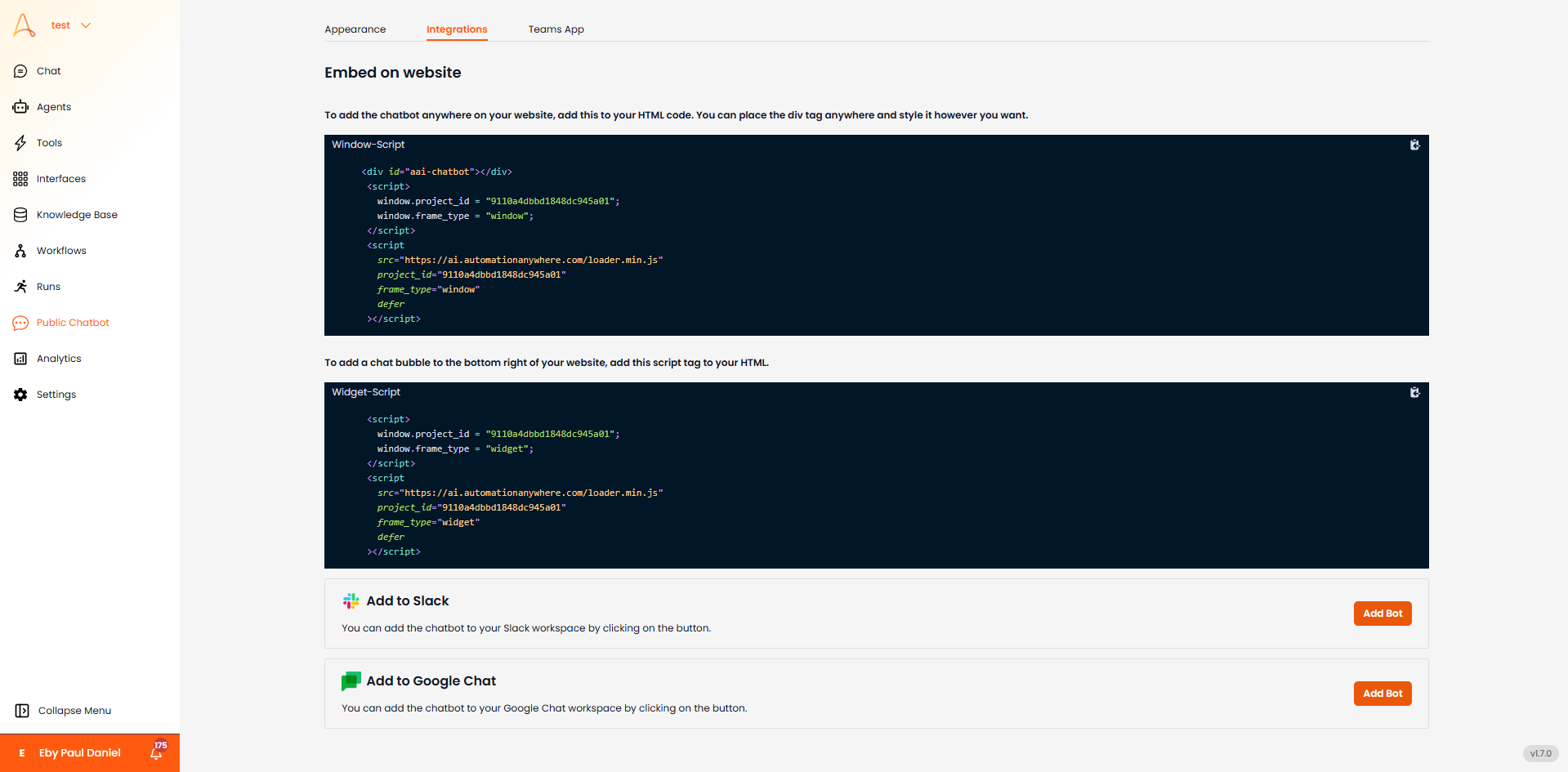 2. **통합** 탭으로 이동합니다.
3. **Google Chat에 추가** 섹션까지 스크롤하여 **봇 추가**를 클릭합니다. Google Workspace Marketplace로 리다이렉션됩니다.
2. **통합** 탭으로 이동합니다.
3. **Google Chat에 추가** 섹션까지 스크롤하여 **봇 추가**를 클릭합니다. Google Workspace Marketplace로 리다이렉션됩니다.
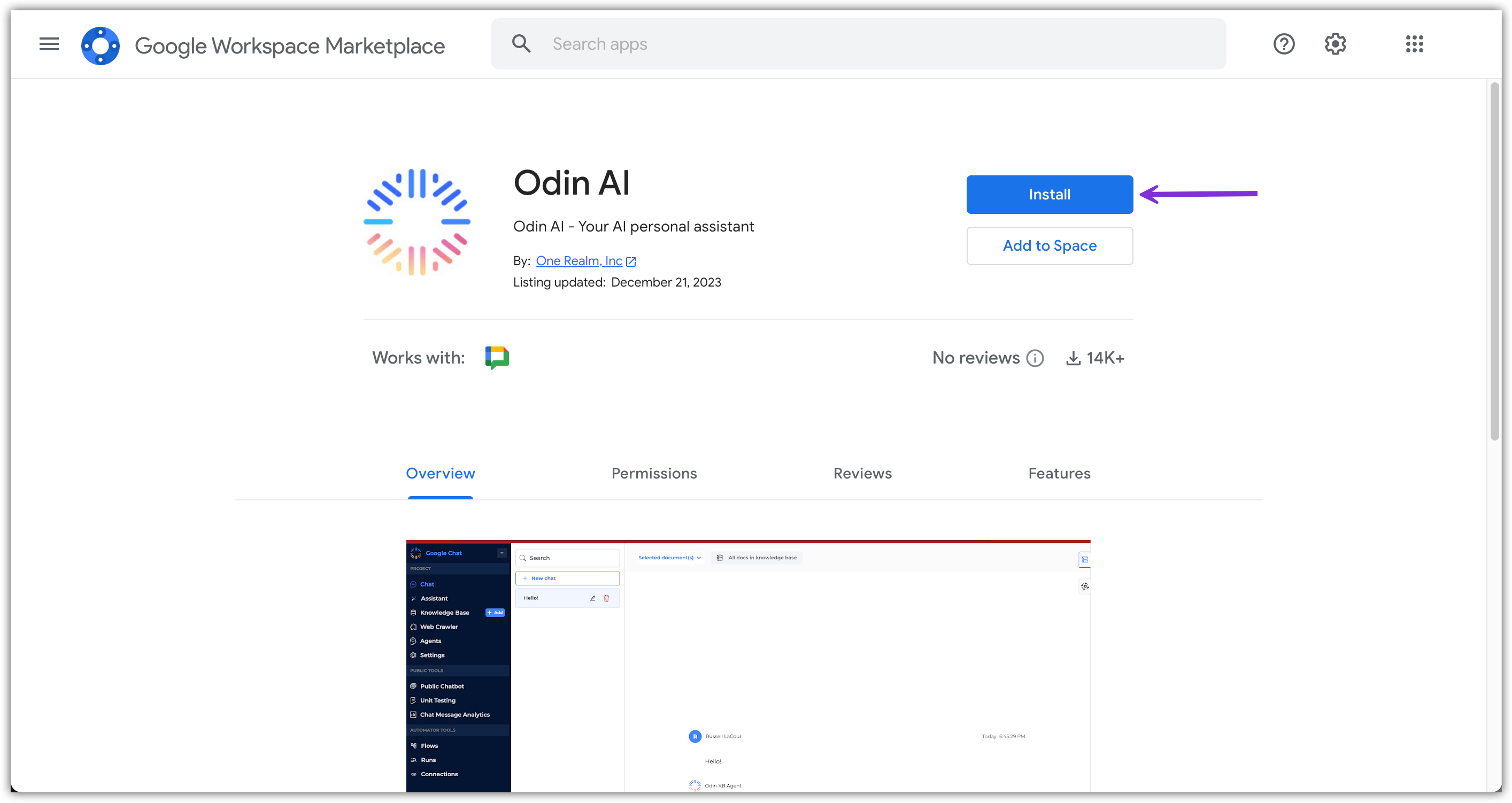
 4. Google Workspace Marketplace에서 **설치**를 클릭합니다.
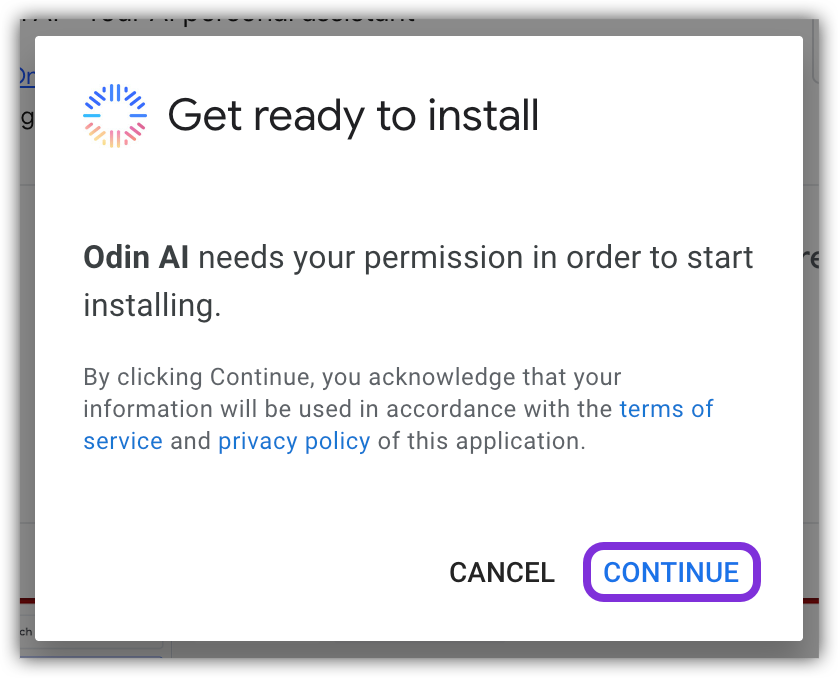
 5. 나타나는 팝업에서 **계속**을 클릭하여 설치를 시작합니다.
 6. Google Workspace 계정에 로그인하라는 다른 팝업 창이 나타납니다.
7. 로그인한 후 One Realm Inc.가 특정 정보에 접근할 수 있도록 권한을 부여해야 합니다.
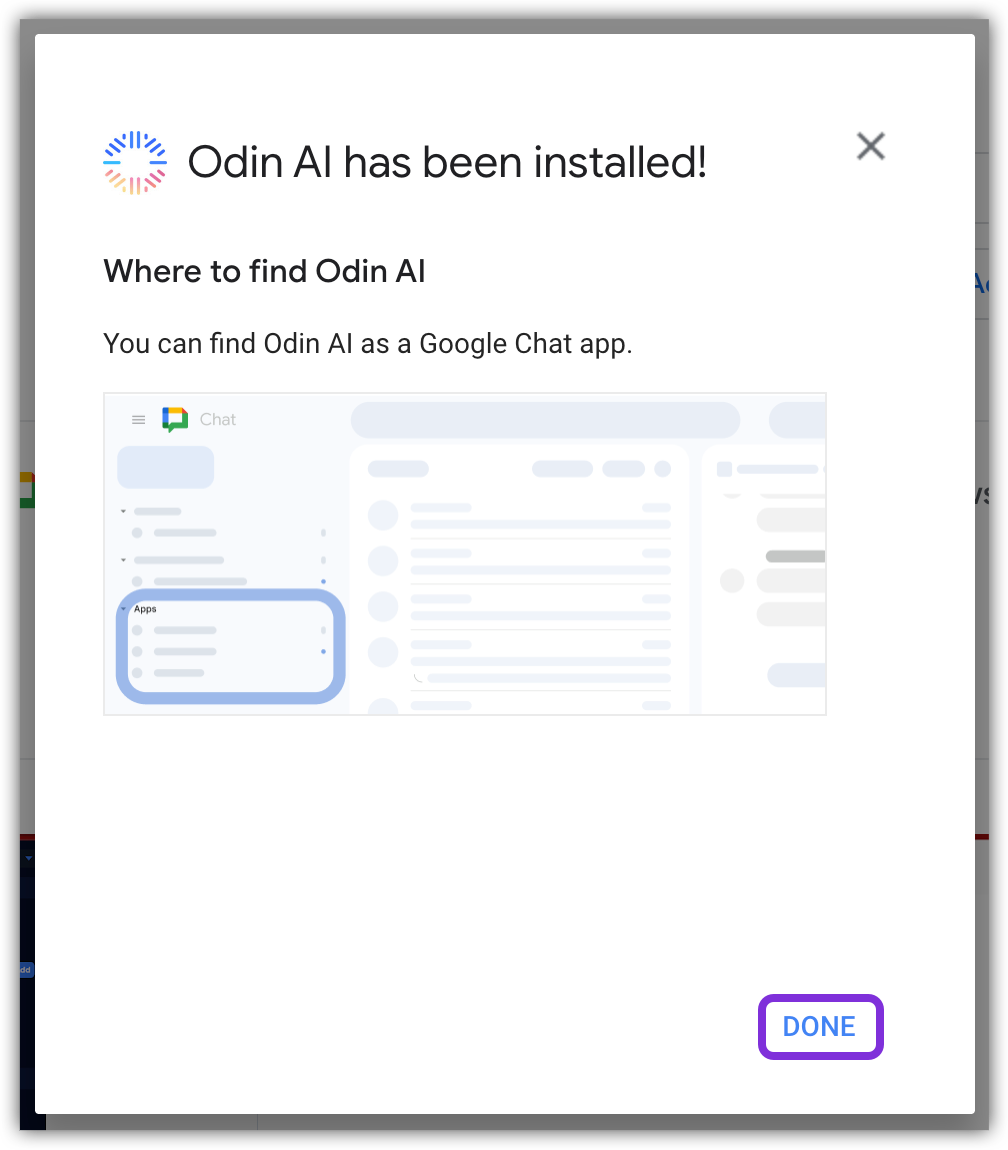
8. 필요한 모든 권한이 부여되면 EKB가 Google Workspace에 설치됩니다. **완료**를 클릭하여 팝업을 닫습니다.
6. Google Workspace 계정에 로그인하라는 다른 팝업 창이 나타납니다.
7. 로그인한 후 One Realm Inc.가 특정 정보에 접근할 수 있도록 권한을 부여해야 합니다.
8. 필요한 모든 권한이 부여되면 EKB가 Google Workspace에 설치됩니다. **완료**를 클릭하여 팝업을 닫습니다.
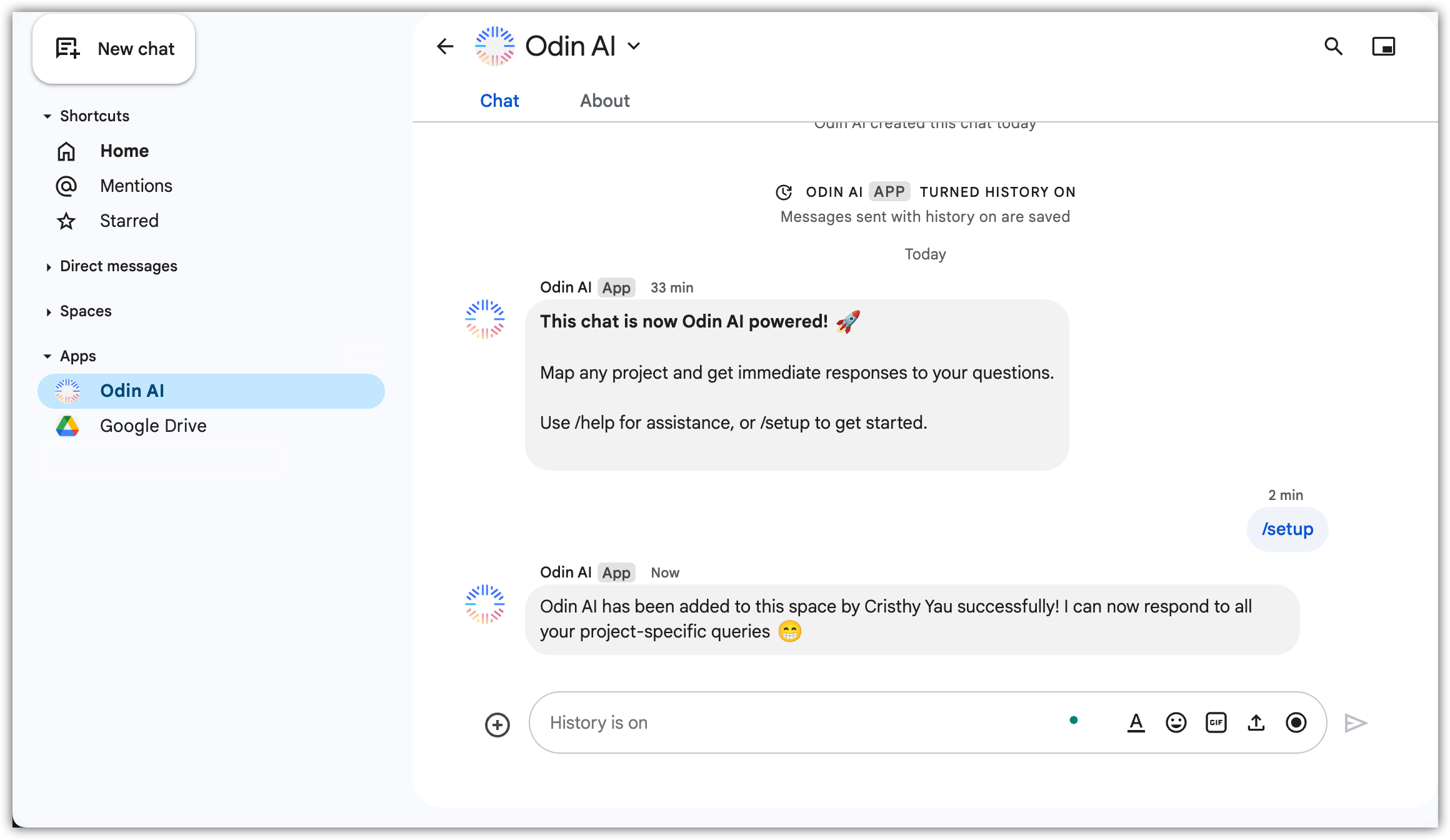
 9. **Google Chat**으로 이동하여 **앱** 섹션에서 *EKB* 앱을 찾습니다.
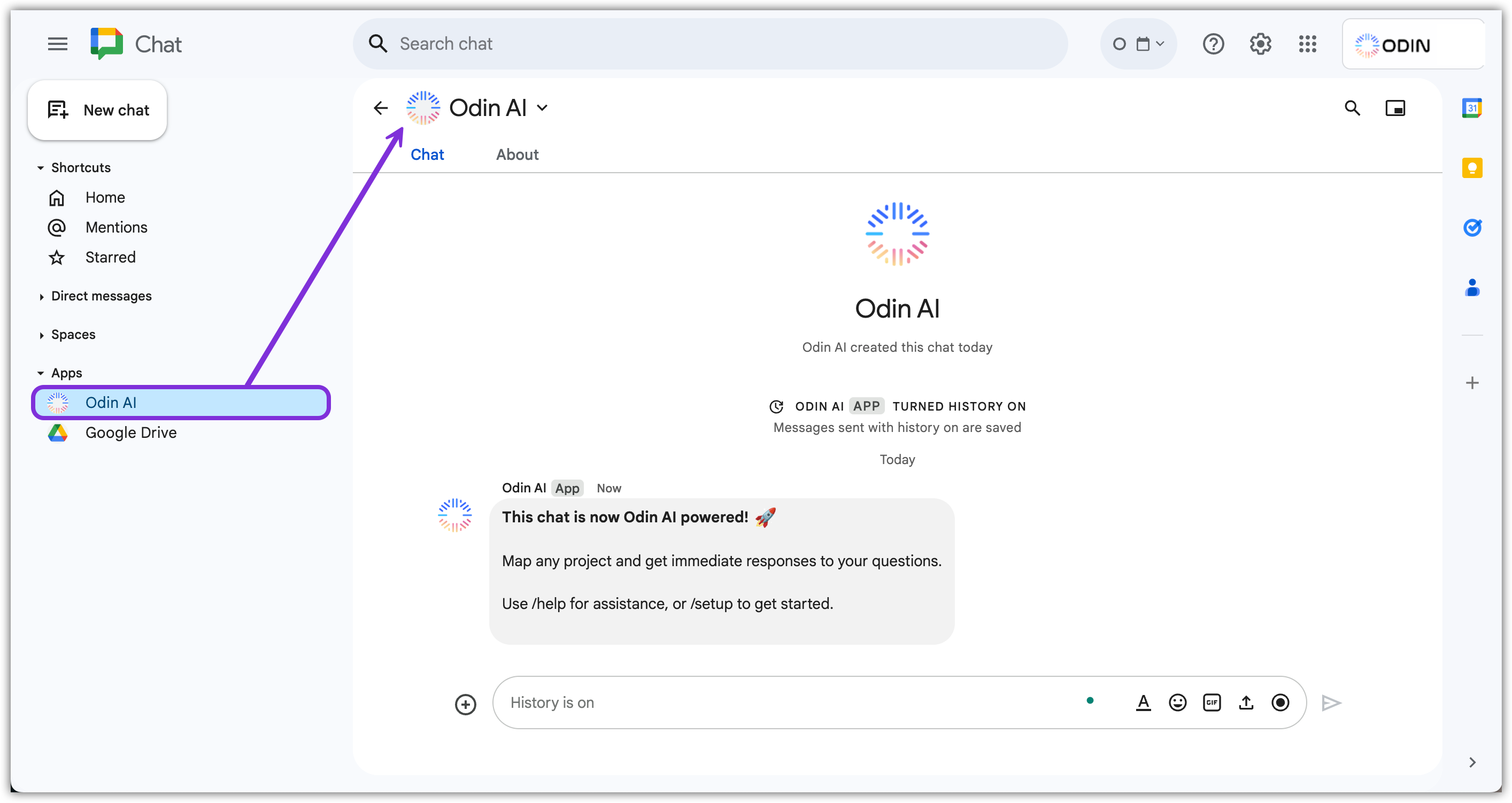 EKB 앱이 Google Workspace에 설치되었습니다. 이제 설정하여 사용을 시작하세요!
## Google Chat에서 EKB 설정
1. Google Chat의 EKB 채팅에서 `/setup`을 입력하고 텍스트 상자 위에 나타나는 옵션을 클릭한 다음 **보내기**를 클릭합니다. 이 명령어는 프로젝트 세부 정보를 입력하는 EKB 앱 설정 창을 표시합니다.
EKB 앱이 Google Workspace에 설치되었습니다. 이제 설정하여 사용을 시작하세요!
## Google Chat에서 EKB 설정
1. Google Chat의 EKB 채팅에서 `/setup`을 입력하고 텍스트 상자 위에 나타나는 옵션을 클릭한 다음 **보내기**를 클릭합니다. 이 명령어는 프로젝트 세부 정보를 입력하는 EKB 앱 설정 창을 표시합니다.
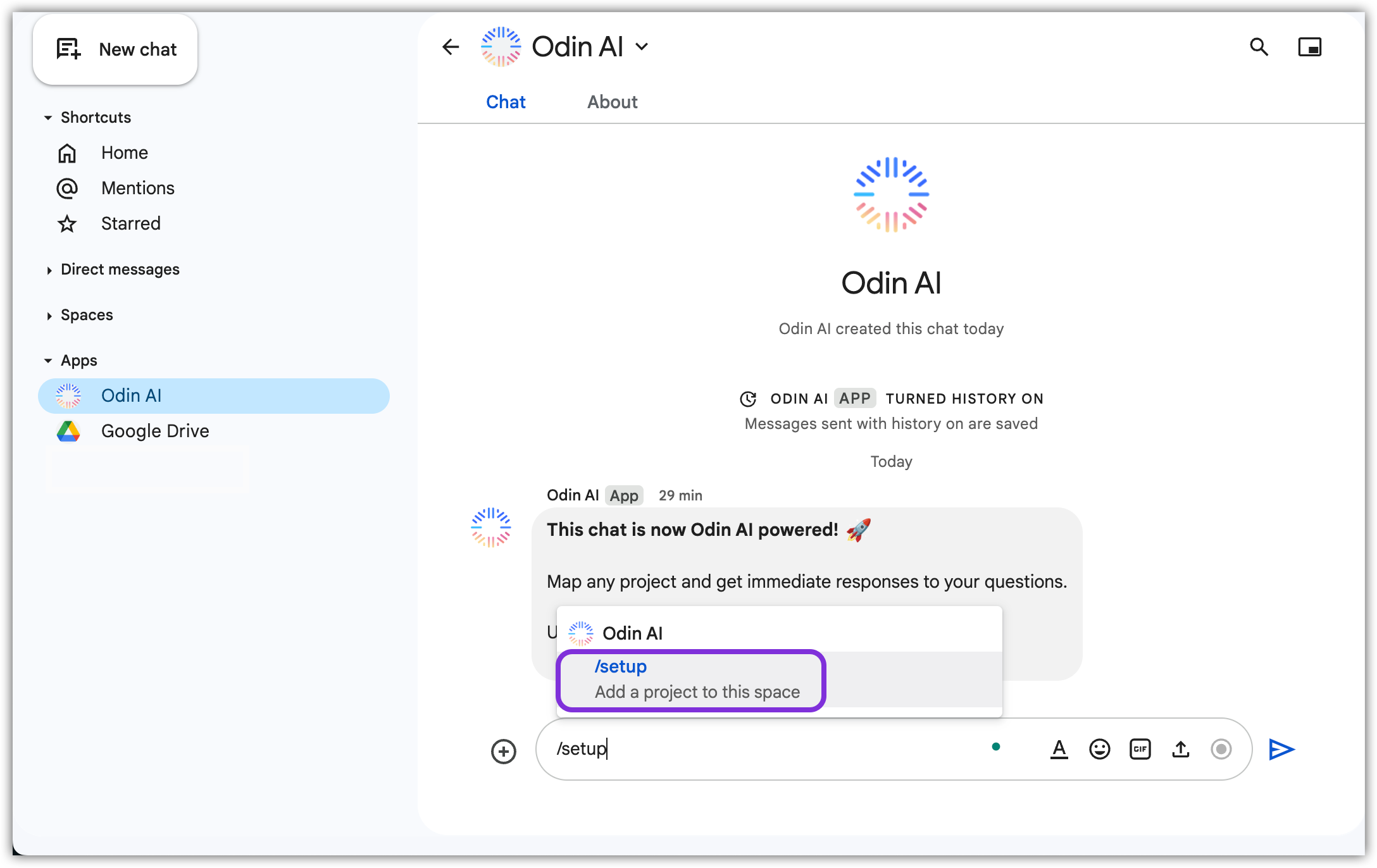 2. 나타나는 팝업에서 다음 정보를 입력하고 **제출**을 클릭합니다:
 a. 프로젝트 ID
b. API Key
c. API Secret
3. EKB 앱이 이제 Google Chat에서 사용할 준비가 되었습니다!
a. 프로젝트 ID
b. API Key
c. API Secret
3. EKB 앱이 이제 Google Chat에서 사용할 준비가 되었습니다!