

Only team admins can open this tab.
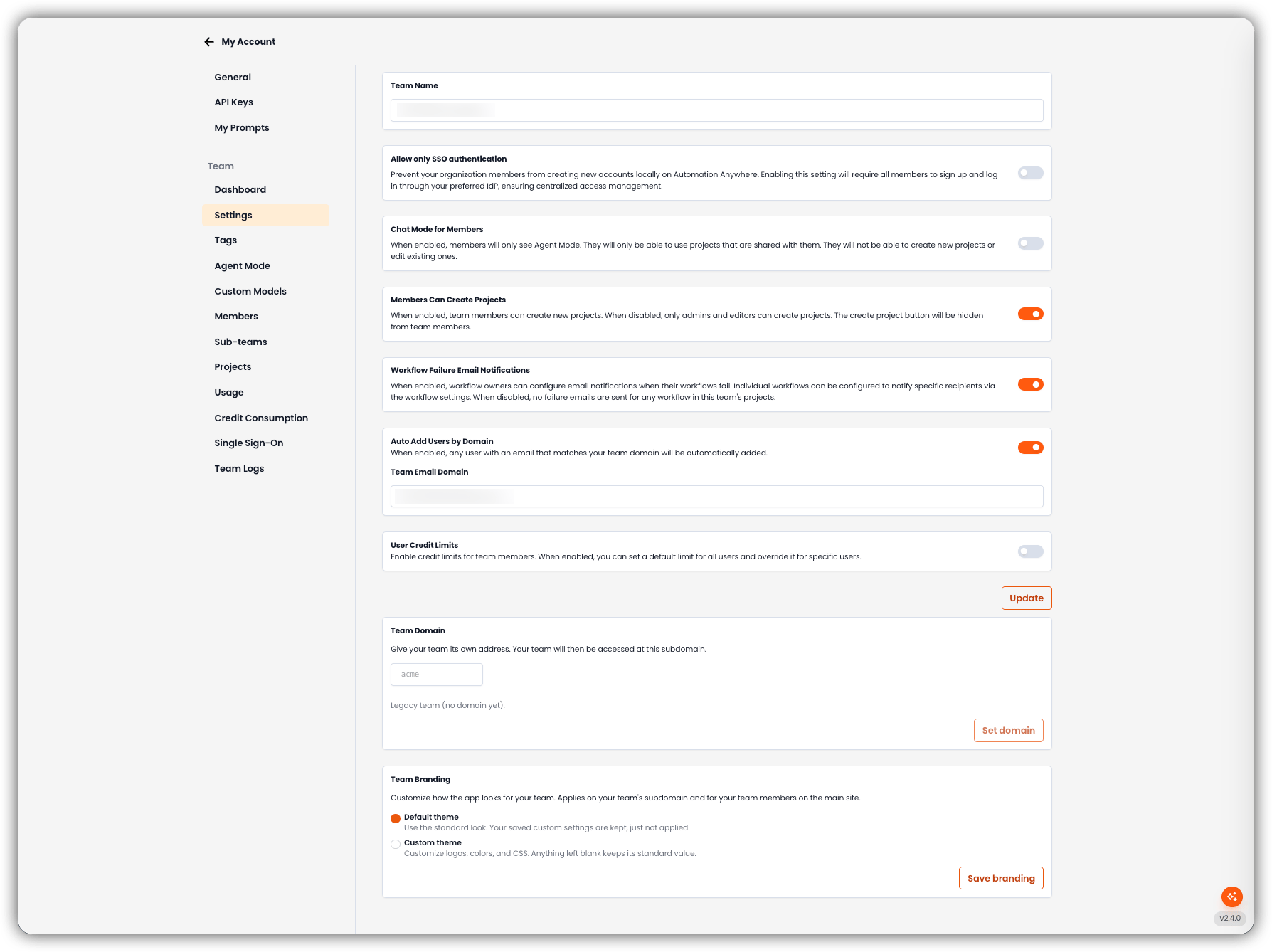
Team Name
The name of your organization. Click Update at the bottom of the settings cards to save this and the toggles below.Allow Only SSO Authentication
When enabled, members cannot create local email-and-password accounts. They must sign up and log in through your preferred identity provider (IdP). This is separate from Team SSO, where you attach the team’s own SAML configuration.Chat Mode for Members
When enabled, members only see Agent Mode. They can use projects shared with them, and cannot create new projects or edit existing ones.Members Can Create Projects
When enabled, team members can create new projects. When disabled, only admins and editors can create projects, and the create-project control is hidden from members.Workflow Failure Email Notifications
When enabled, workflow owners can send email when their workflows fail. Recipients are configured on the workflow. When disabled, no failure emails are sent for workflows in this team’s projects.Auto Add Users by Domain
When enabled, any user whose email matches Team Email Domain is added to the team automatically. Enter a company domain (for exampleacme.com); consumer domains such as gmail.com are not allowed.
User Credit Limits
Enable per-member credit limits. When on, set a Default Credit Limit for all users (0 means unlimited). You can override the default for individual members. These limits are separate from sub-team and project credit ceilings. See Credit Consumption.Updating Settings
Click Update to save the settings above. They apply to the team immediately.Team Domain
Give the team its own subdomain address. The team is then accessed at that host.- If the team has no domain yet, enter a slug and click Set domain.
- If a domain already exists, changing it retires the old address and redirects you to the new host.
Team Branding
Customize how the app looks for this team. Branding applies on the team’s subdomain and for team members on the main site.
Click Save branding to apply branding changes. This is separate from Update on the settings cards above.