

Only team admins can open this tab.
Prerequisites
- A team-admin account (this tab is not shown to editors or members)
- A clear naming scheme (for example
HR-Only,Finance-Confidential) so member assignment stays consistent
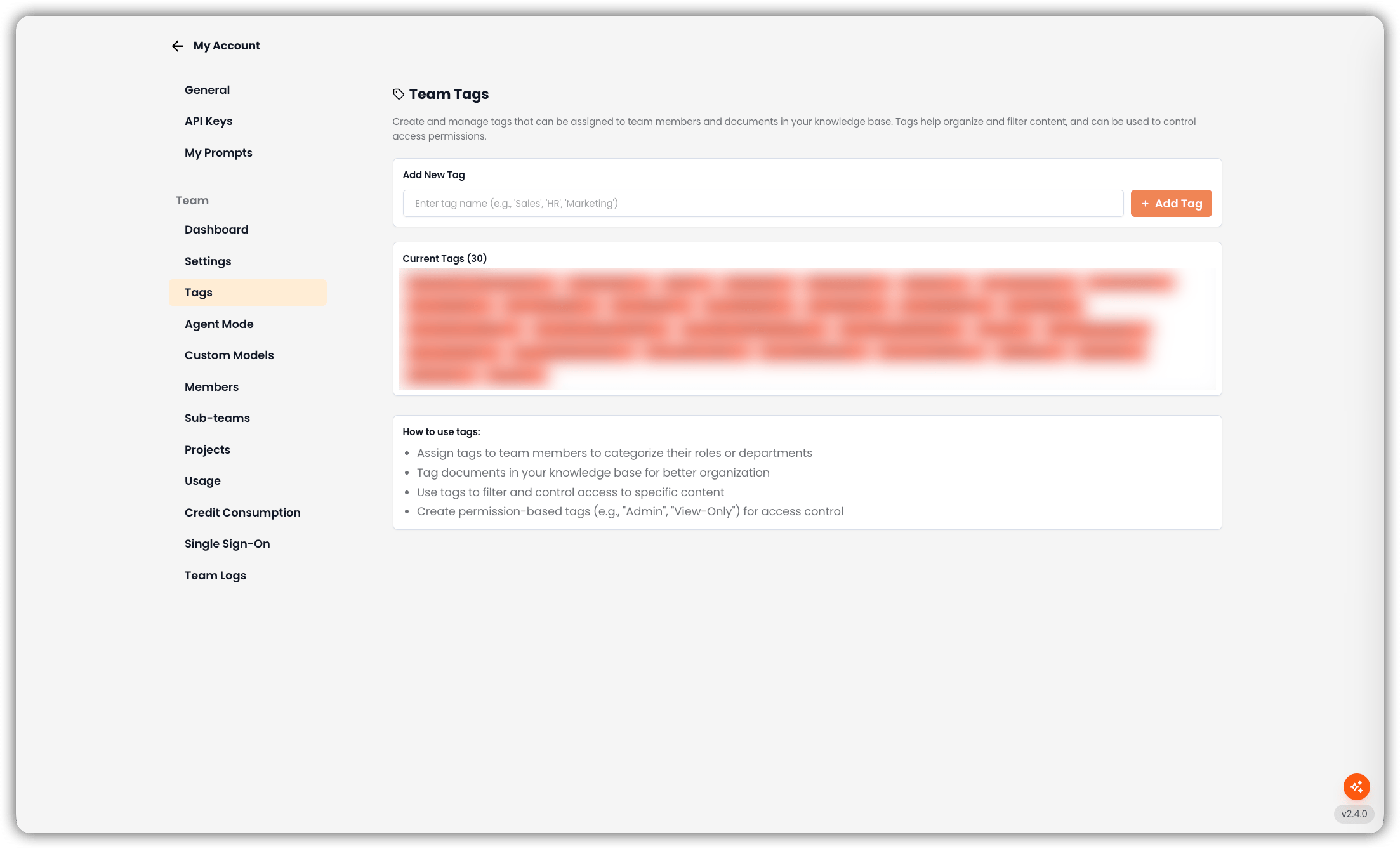
Where to Find It
The page has:
If no tags exist yet, Current Tags shows No tags created yet.
Add a Tag
- Go to My Account → Tags.
- Enter a tag name (for example
Sales,HR,Marketing). - Click Add Tag (or press Enter).
- The tag appears under Current Tags.
Remove a Tag
On Current Tags, click the remove control on the badge. Removing a tag from the catalog affects future assignment — review documents and members that relied on that tag before deleting.How Tags Are Used (After You Create Them)
Access Tags control who can see a document in search and chat. They are not a replacement for:
- Custom Metadata (describe / filter content) — see Tags & Custom Metadata
- Project membership and roles (who is in the project at all)
Naming Tips
- Prefer explicit access-oriented names (
HR-Only,Contractors-Blocked) over vague labels (Important) - Keep spelling identical everywhere — tag matching is exact
- Do not create separate “permission roles” as tags if you already use Admin / Editor / Member roles for that purpose; tags layer document visibility on top of roles