Connect Google Drive (OAuth) to this project. After the connection is active, add files and folders using Add Google Drive Content. This page is about the Knowledge Base connector (auth / connection). Separately, agents can call Google Drive live via the agent Google Drive toolkit.

Prerequisites

Where to connect

You can reach the same connector from either place: The Google Drive tile shows a green status and a connection count when linked.

Connect Google Drive

  1. Open the Google Drive tile.
  2. Click + Connect Google Drive (or Connect).
  3. Sign in with Google and grant the permissions EKB requests to access Drive files.
  4. Confirm your Google account appears listed under the Google Drive connection.
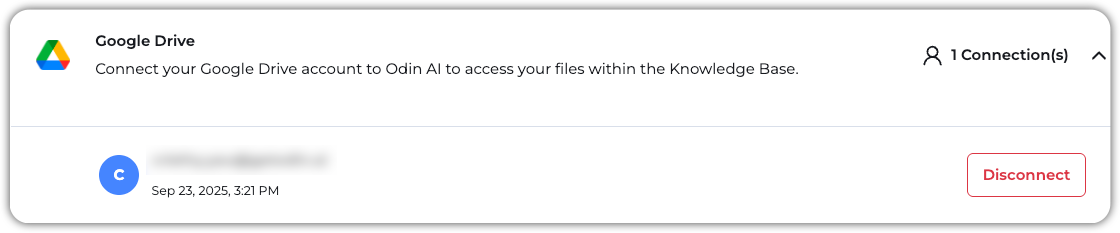
Google Drive Connected Disconnect from the Google Drive modal when a link should be removed. Reconnect with the same flow if tokens expire or scopes change.

Next: add content

With the connection established, ingest files and folders: Add Google Drive Content to the Knowledge Base — URL Upload for file or folder links, Sync refresh, and troubleshooting.

Troubleshooting