

EK’s generic SAML flow works with Okta out of the box. If you haven’t already, read the SAML SSO Overview to understand how the integration works before you begin.
Prerequisites
- You have admin access to your Okta organization.
- You have Super Admin access to your on-premise EK instance.
- You know the fully qualified domain name (FQDN) of your EK backend host (e.g.
ek-api.corp.acme.com). - You know the email domain you want to enable SSO for (e.g.
acme.com).
Part 1 — Configure Okta
Create a New SAML Application in Okta
1
Create a new app integration
In your Okta admin console, navigate to Applications → Applications and click Create App Integration. Select SAML 2.0 as the sign-in method.
2
Enter the SAML settings
In the Configure SAML step, enter the following values:
3
Add attribute statements
Still in the Configure SAML step, scroll down to Attribute Statements and add the following:
4
Complete the setup
Finish the application creation wizard. Assign the application to the users or groups that should have SSO access to EK.
Part 2 — Retrieve the Okta Metadata
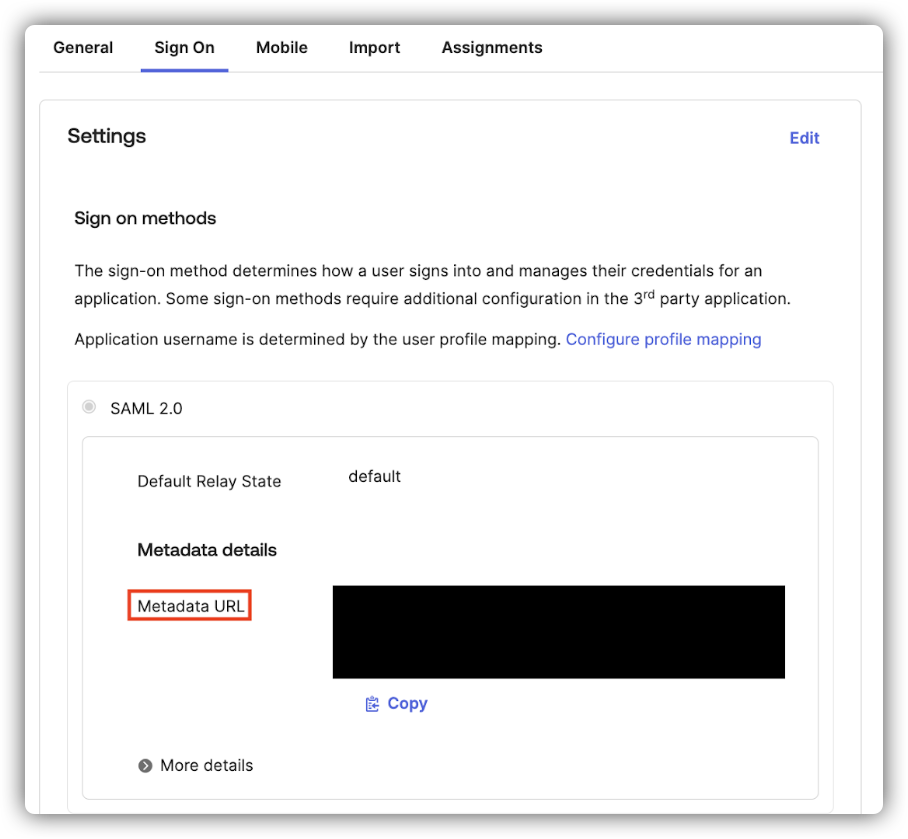
Once the Okta application is created, retrieve the IdP metadata URL:1
Go to the Sign On tab
Open the application in Okta and navigate to the Sign On tab.
2
Find the Metadata URL
Under Settings → SAML 2.0 → Metadata details, copy the Metadata URL.The path is:You will need this URL in Part 3.
Part 3 — Register the Domain in EK
Send aPOST request to the domain registration endpoint:
Required Fields
Authentication
The endpoint requires your EK API Key and Secret passed asX-API-KEY and X-API-SECRET headers.
On success, a record is created in the sso_providers table on the backend.
Part 4 — Configure the Frontend
Once the domain is registered, set the frontend environment variable and restart the frontend service.1
Open the frontend environment file
On your on-premise deployment server, open
onprem-deployment/.env.web.2
Add the environment variable
Add the following line, replacing
acme.com with your actual email domain:3
Restart the frontend services
Test the Integration
Sign in to EK with a real@<domain> user to confirm the flow works end to end. If the user authenticates successfully but is denied access, check your SAML Access Controls configuration — see the EK SAML Access Controls and Automated Team/Project Assignment guide.